Configure a Generic OIDC Identity Provider in ZITADEL
This guides shows you how to connect your OIDC Provider as an identity provider in ZITADEL.
In ZITADEL you can connect an Identity Provider (IdP) like your OIDC Provider to your instance and provide it as default to all organizations. Also, you can register the IdP to a specific organization only. If you allow so, your organizations members can do the same in self-service.
Open the Generic OIDC Provider Template
Go to the settings page of your instance or organization and choose "Identity Providers".
In the table you can see all the providers you have configured. Also, you see all provider templates that are available.
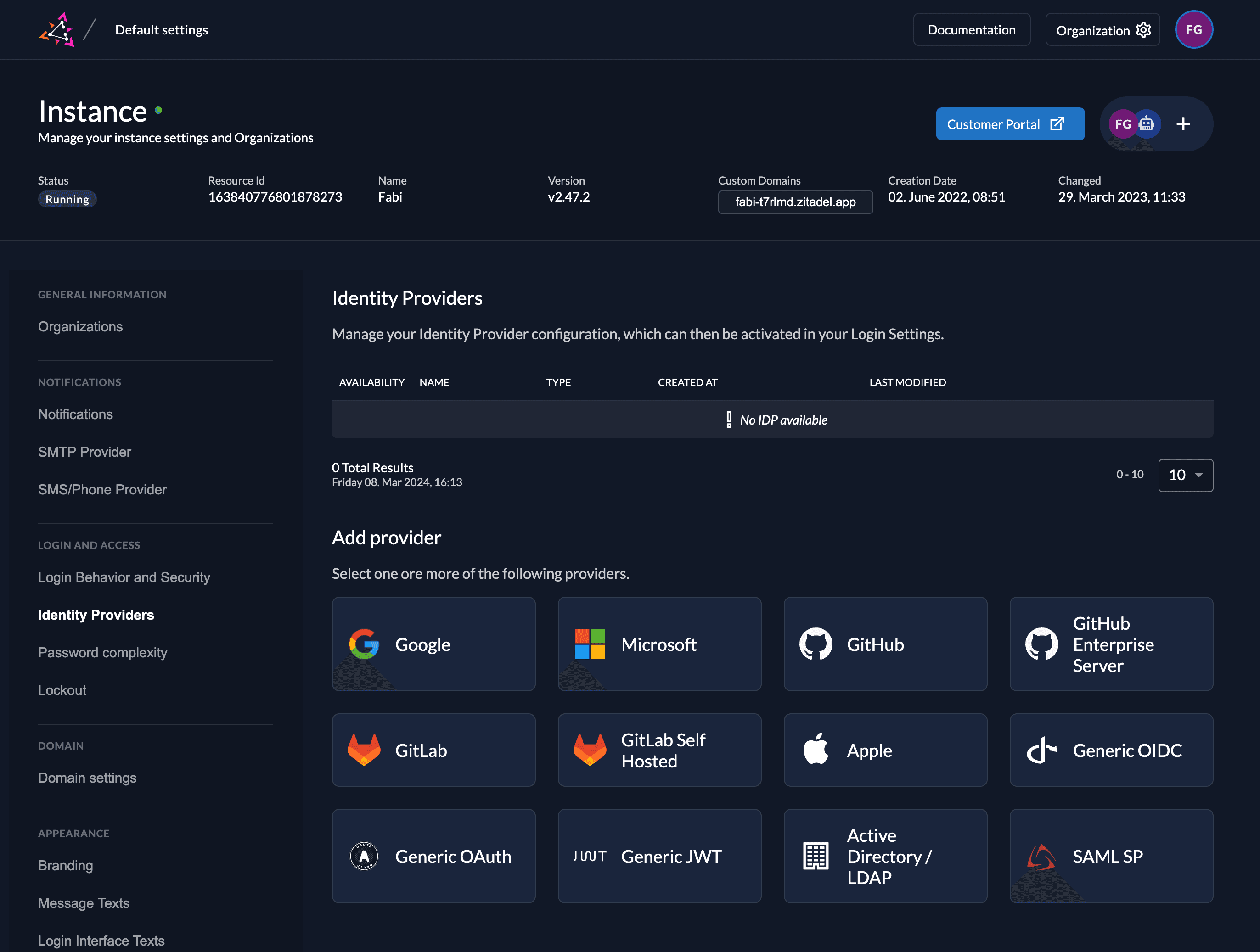
Select the Generic OIDC Provider template.
Click on the ZITADEL Callback URL to copy it to your clipboard. You will have to paste this URL in your external OIDC provider's application settings later.
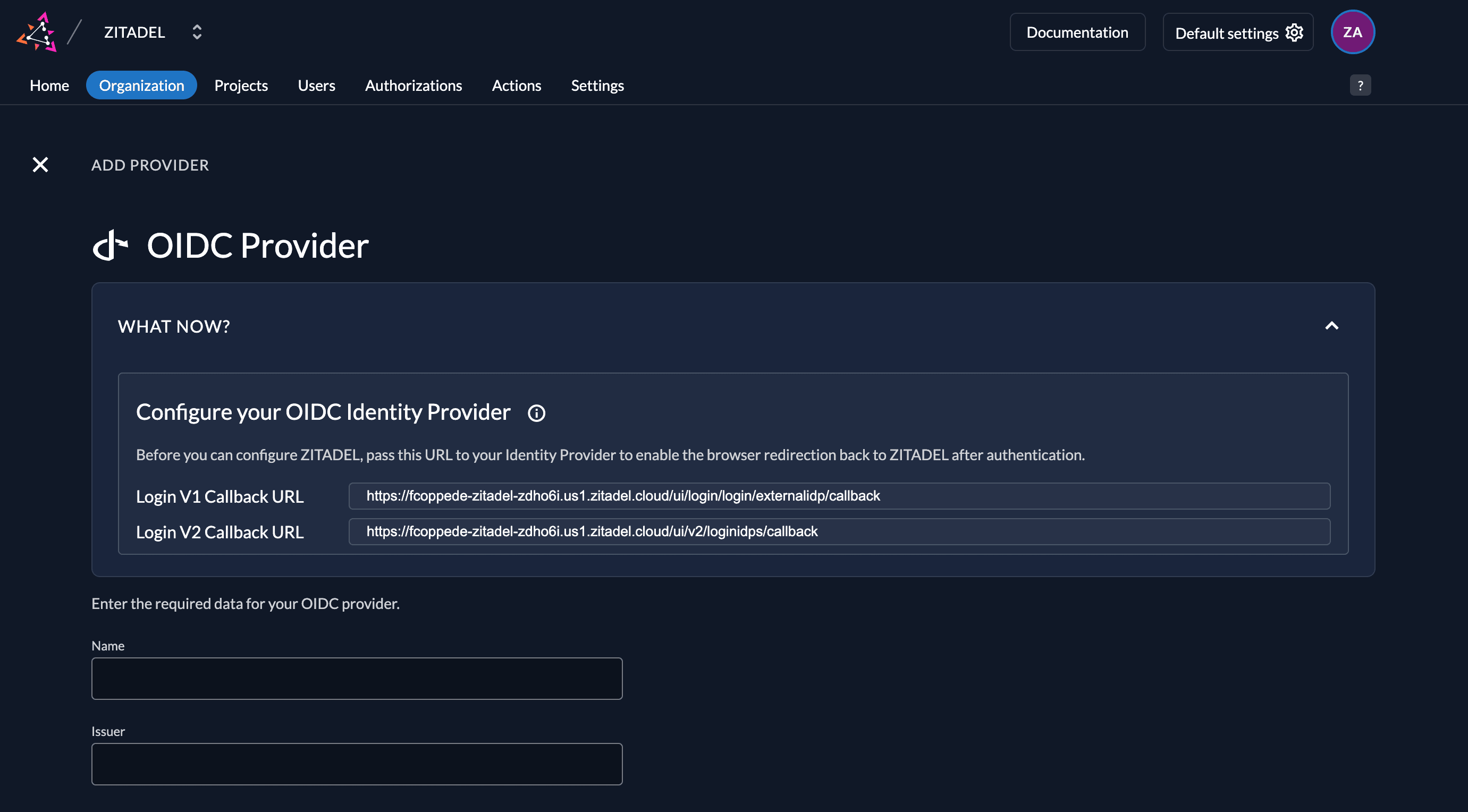
OIDC Provider Configuration
Register a new client/application
- Log in to your external OIDC Provider's dashboard or management console.
- Navigate to the applications, clients, or integrations section (name may vary depending on your provider).
- Create a new application and select "OIDC" or "OpenID Connect" as the type.
- Set a name for the application.
- Paste the ZITADEL Callback URL you copied before into the "redirect URIs" or "sign-in redirect URIs" field.
- Save or copy the generated Client ID and Client Secret.
The exact steps and terminology may vary for each provider. Refer to your provider's documentation if you don't see these options.
ZITADEL Setup
- Return to the Generic OIDC Provider template in ZITADEL.
- Enter the Client ID and Client Secret from your OIDC provider's application.
- Give the provider a name (e.g., "My OIDC Provider"). This name will appear as a button on the ZITADEL login screen.
- Enter the Issuer URL of your OIDC provider (e.g.,
https://your-provider.example.com).
You can optionally configure the following settings. ZITADEL provides sensible defaults if you leave these unchanged.
Scopes: The scopes define which information ZITADEL will request from the provider. openid, profile, and email are pre-filled.
This information is used to create or update the user within ZITADEL.
ZITADEL ensures that at least the openid scope is always sent.
Use PKCE: If enabled, Proof Key for Code Exchange (PKCE) will be used to secure the authorization code flow in addition to the client secret.
Automatic creation: If this setting is enabled the user will be created automatically within ZITADEL, if it doesn't exist.
Automatic update: If this setting is enabled, the user will be updated within ZITADEL, if some user data is changed withing the provider. E.g if the lastname changes on the OIDC provider account, the information will be changed on the ZITADEL account on the next login.
Account creation allowed: This setting determines if account creation within ZITADEL is allowed or not.
Account linking allowed: This setting determines if account linking is allowed. When logging in with a OIDC provider account, a linkable ZITADEL account has to exist already.
Either account creation or account linking have to be enabled. Otherwise, the provider can't be used.
Activate IdP
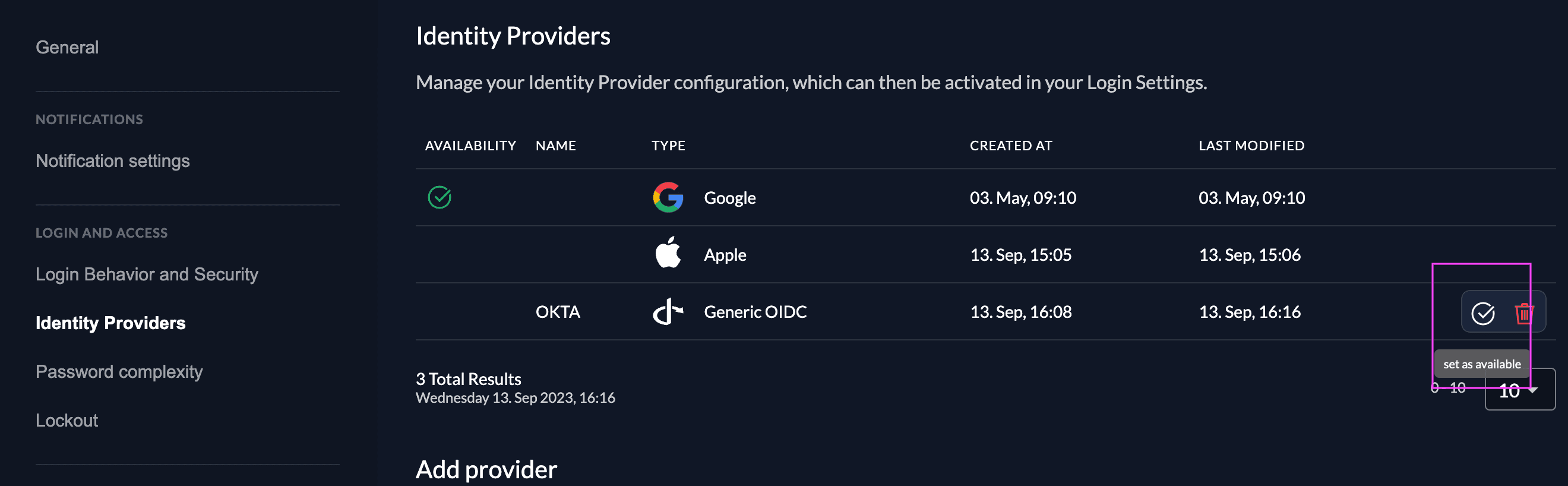
Once you created the provider, it is listed in the providers overview. Activate it by selecting the tick with the tooltip set as available.
If you deactivate a provider, your users with links to it will not be able to authenticate anymore. You can reactivate it and the logins will work again.
The provider can also be activated via API. As the identity providers are sub-resources of the login settings, this is done by linking the provider to the settings:
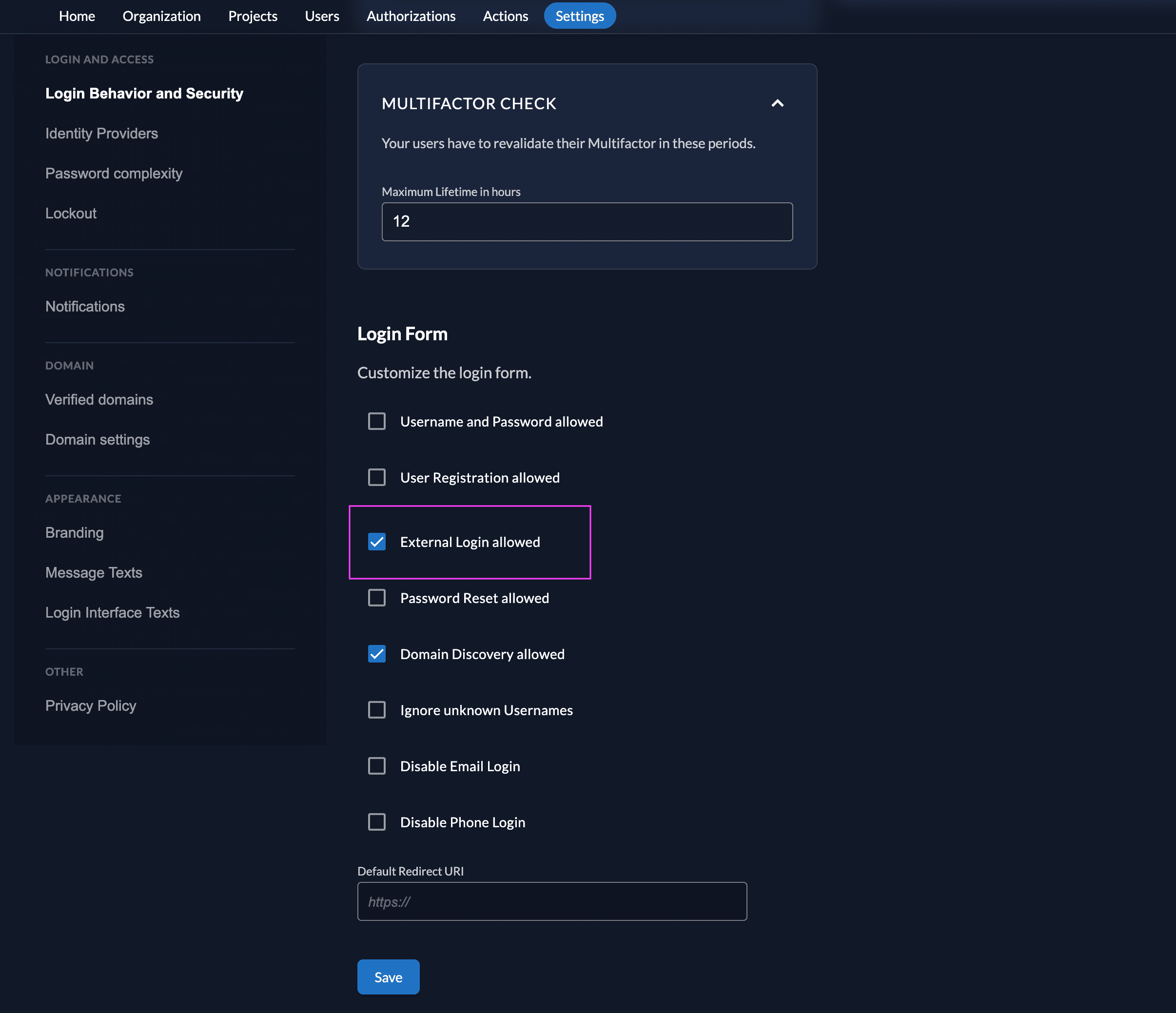
Ensure your Login Policy allows External IDPs
- Go to the Settings
- To allow external IdP logins by default, go to your instance default settings at
${CUSTOM_DOMAIN}/ui/console/instance?id=general - To allow external IdP logins on an organization, go to
${CUSTOM_DOMAIN}/ui/console/org-settings?id=loginand ensure you have the right org context.
- To allow external IdP logins by default, go to your instance default settings at
- Modify your login policy in the menu "Login Behavior and Security"
- Enable the attribute "External Login allowed"
You can also change the settings through the API directly either in the default settings or on a specific organization:
Test the setup
To test the setup, use incognito mode and browse to your login page. You see a new button which redirects you to your OIDC provider login screen.
By default, ZITADEL shows what you define in the default settings. If you overwrite the default settings for an organization, you need to send the organization scope in your auth request.
The organization scope looks like this: urn:zitadel:iam:org:id:{id}.
You can read more about the reserved scopes
or use the ZITADEL OIDC Playground to see what happens with the login when you send different scopes.
Was this page helpful?